Add & Select Preset Notes
If you frequently reuse the same Project Names, Descriptions, or Watermark the Preset Notes feature streamlines your workflow. Simply select from a pre-defined list instead of typing every time. You can build custom lists in advance, or let the app automatically save your recent entries for:
- Project Name
- Photo Description
- Watermark
How to access note fields?
- Tap on the Project name, Description & Watermark fields in the camera
- Pop-up after the shutter has been activated (notes on – green pencil)
- Edit Preset Notes button in Solocator Settings for all notes fields
- Watermark field from the Settings screen & from the camera if not empty
- Edit notes from the photo library
What can you do in each note field?
- Enter new notes
- Edit previous notes
- Select notes from the list
- Search for notes
- Enter a preset list of notes to select later when taking photos
- Sort notes by recent/oldest and by A-Z or Z-A
- Delete unwanted notes
(Solocator; Android v2.80+, iOS v2.25+)
Faster Note Selection – Skip Preview Pop-Ups
If you frequently use the same notes, you can bypass the preview screen for specific fields. Tapping a note field takes you directly to your preset list, letting you select a note and snap your photo in one fluid motion.
You can enable this globally or per-field. Perfect if you need to keep the preview open for some fields to make quick edits, while speeding through others. Even with the preview skipped, you can always jump back into your preset notes whenever you need them.
Note: You will find the skip preview pop-up switches at the bottom of the preset note lists.
Enter Preset Notes (Settings screen)
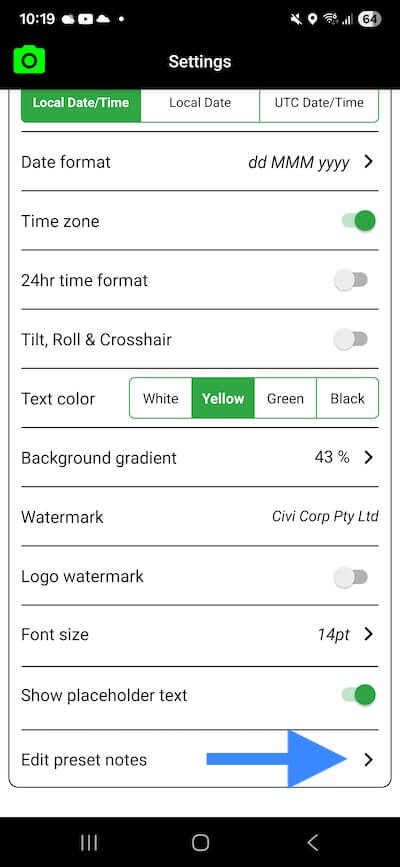
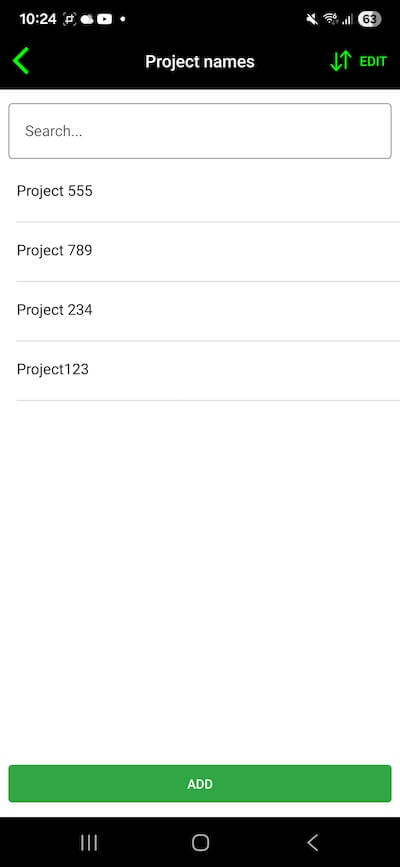
- Tap on the “Edit preset notes” button at the bottom of the Notes & Camera Overlay section of Solocator Settings.
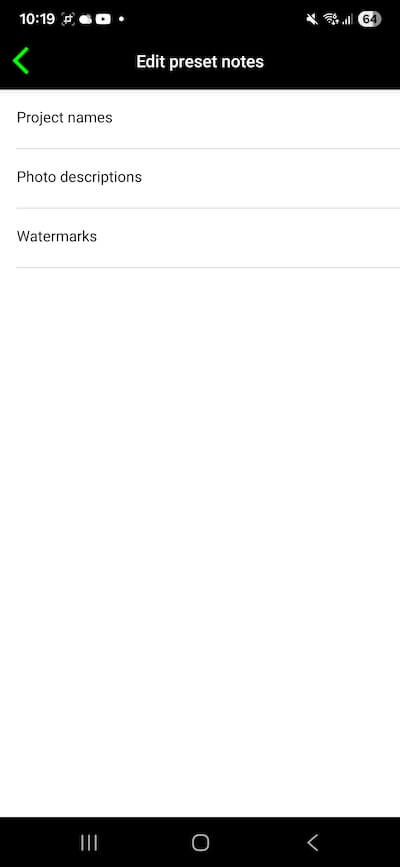
- Then select one of the note fields from the list:
– Project Names
– Photo Descriptions
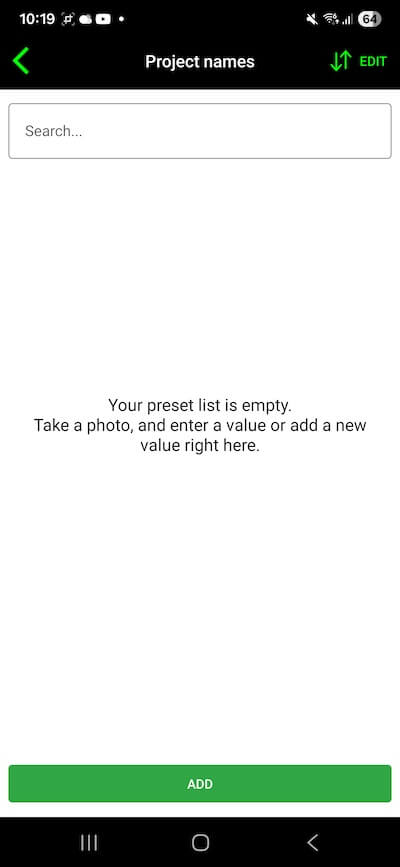
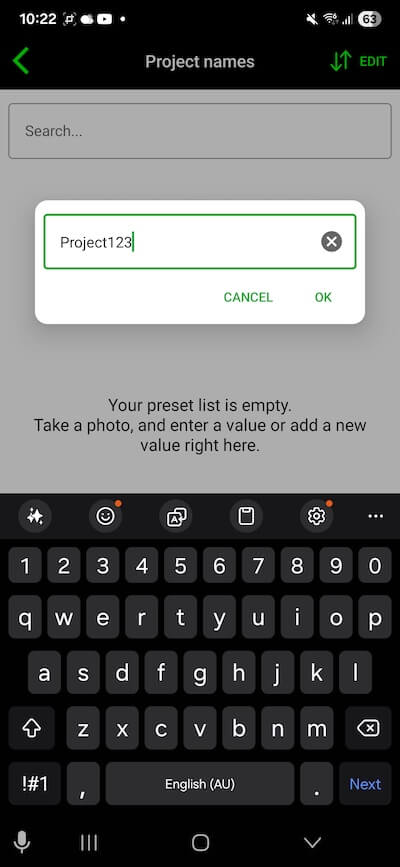
– Watermarks - Tap the “Add” button at the bottom of the preset screen and type your first note, then tap “OK”. Continue adding more notes.
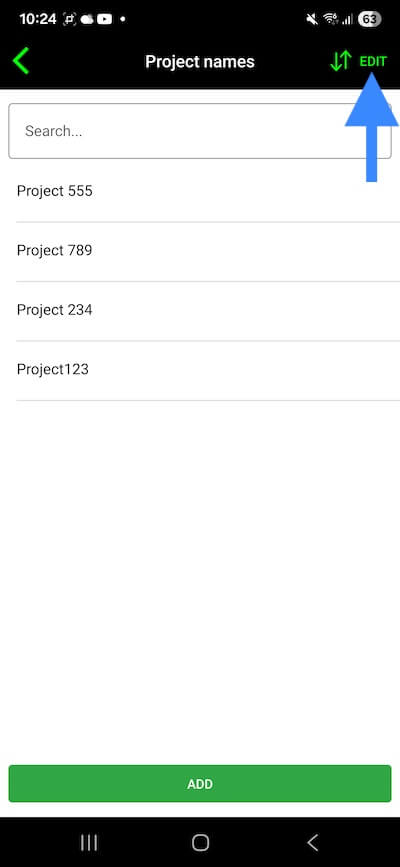
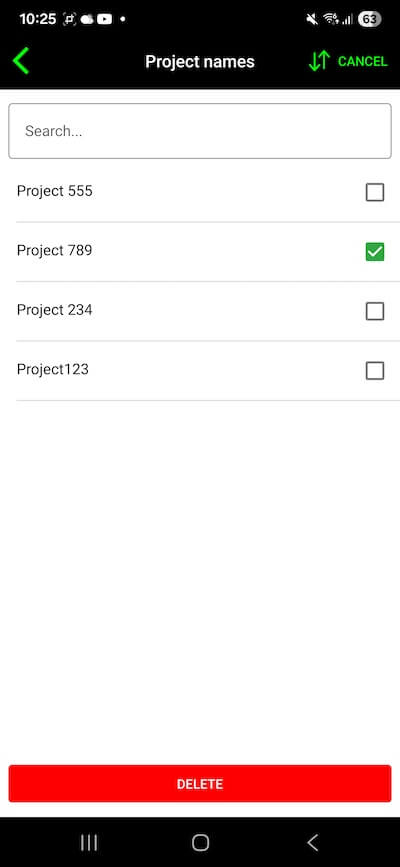
- To delete a note, tap the “Edit” button, select the notes and then tap the “Delete” button. Or swipe left on a note, then tap Delete in the iOS app.
Video
Screenshots