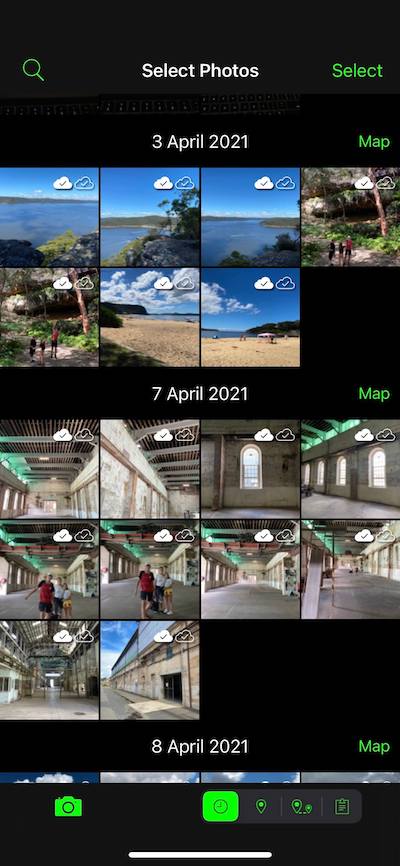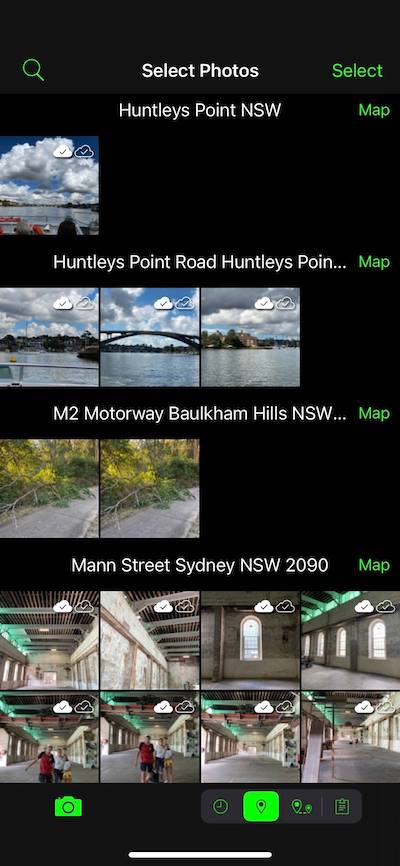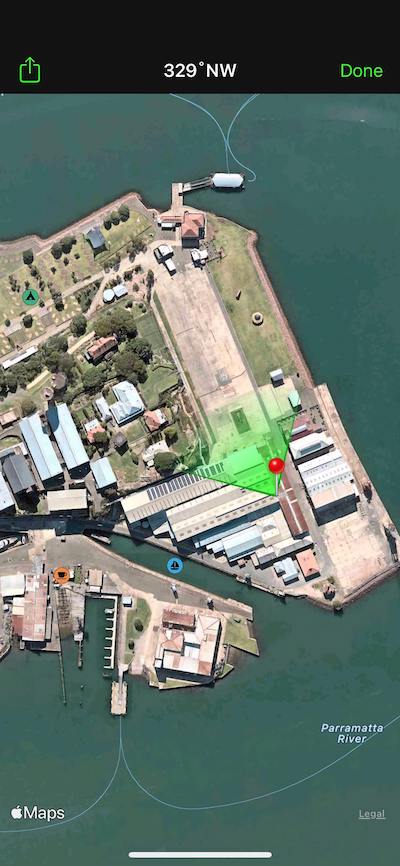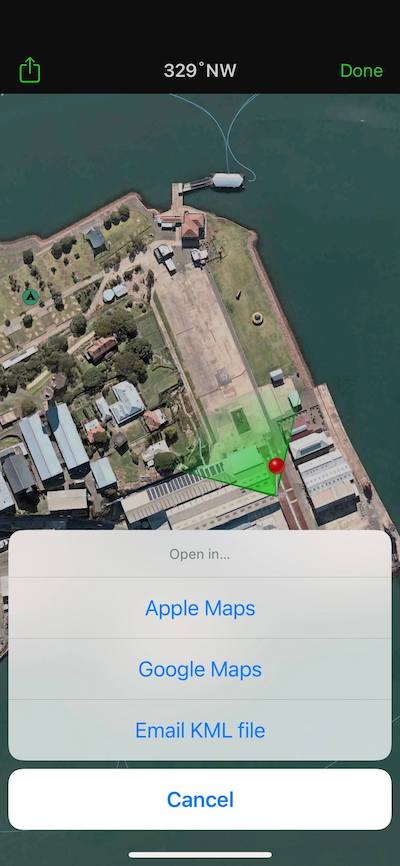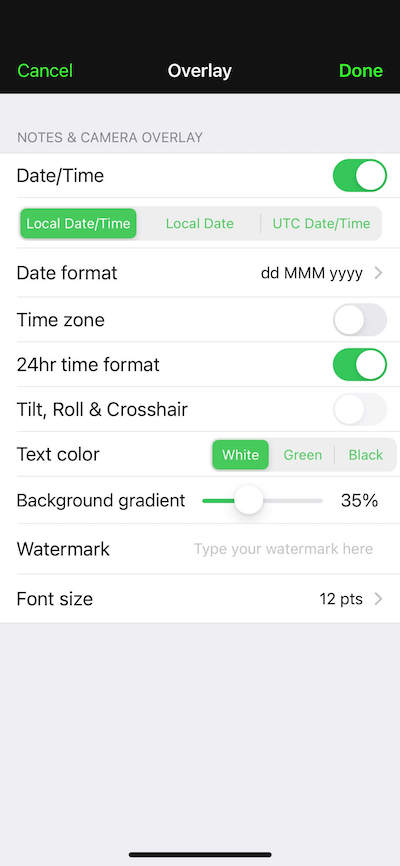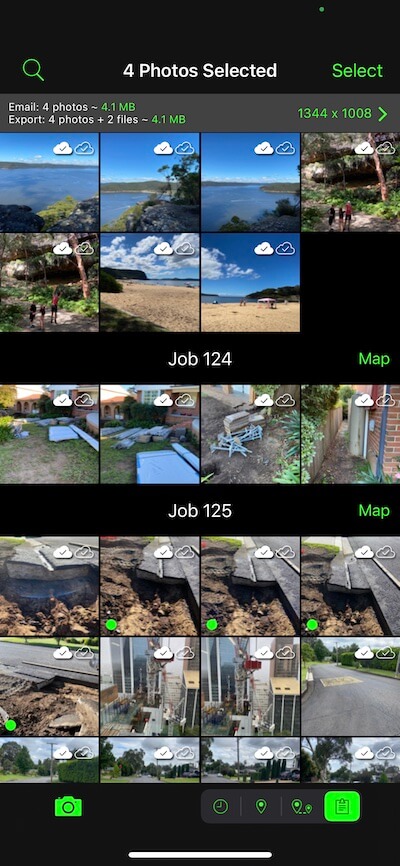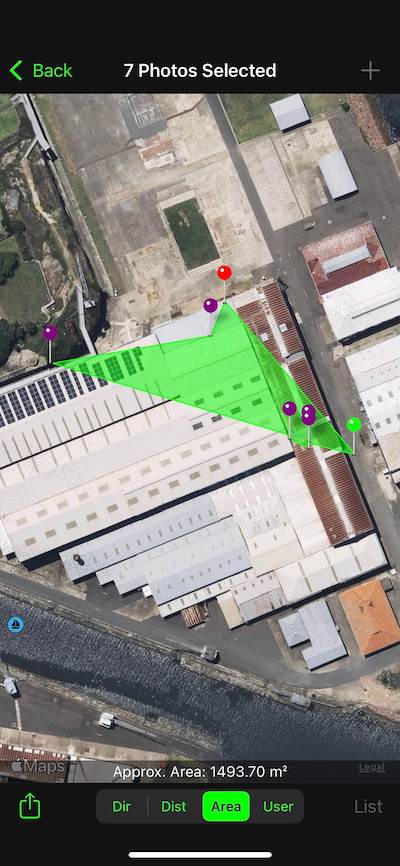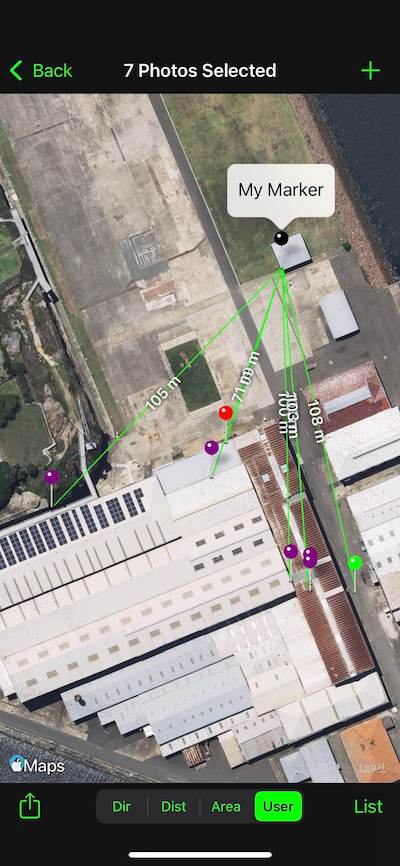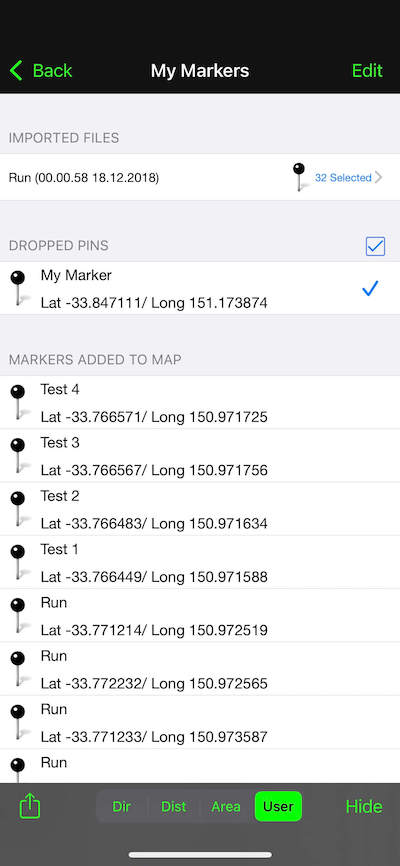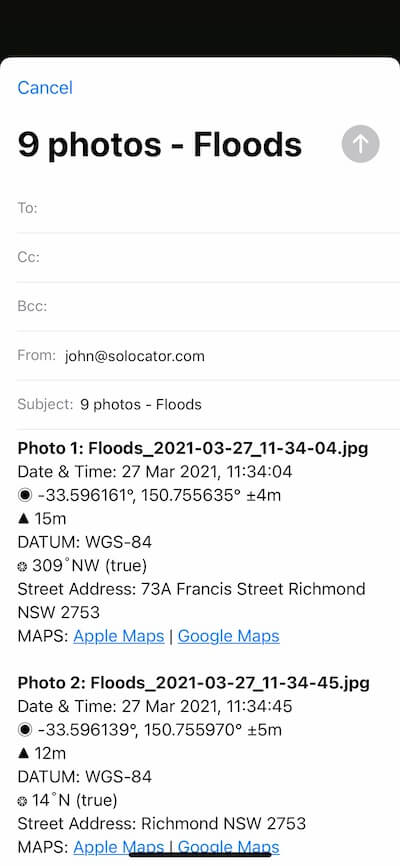
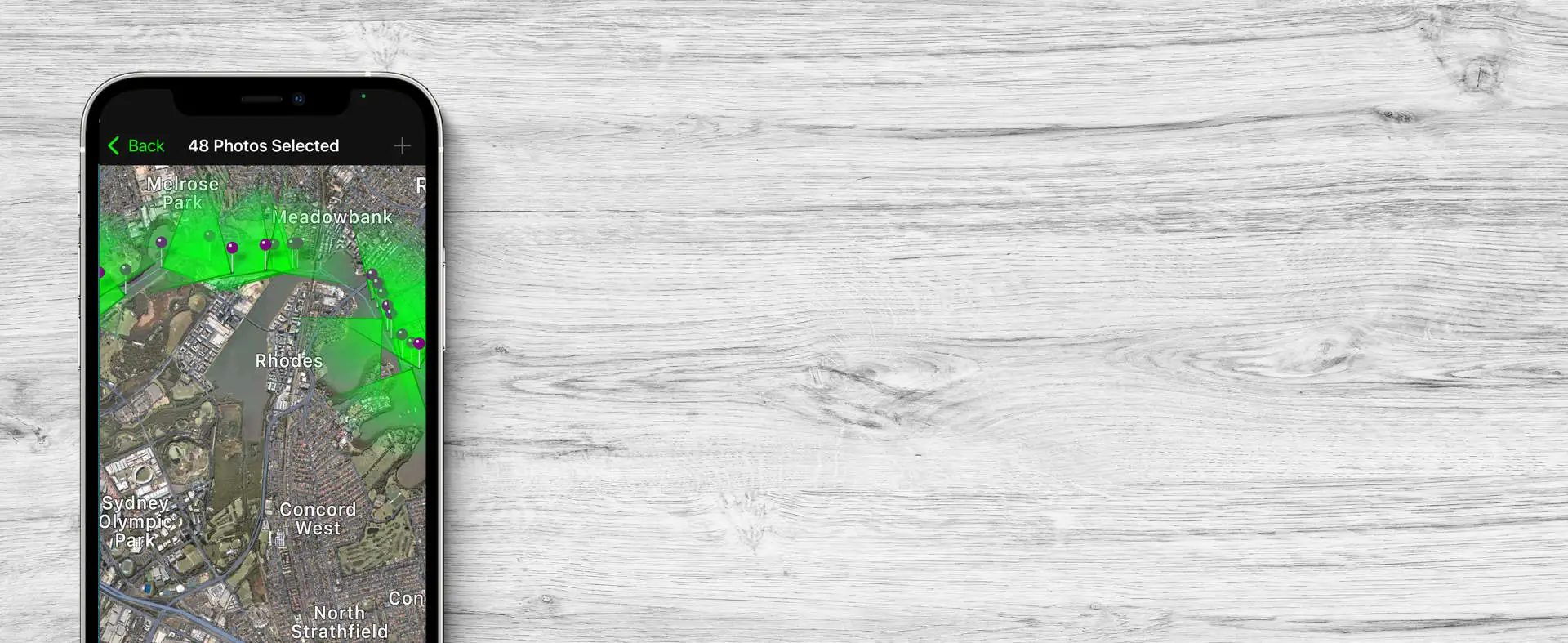
Photo locations and directions on solocator map on an iPhone.

IOS Features

OVERLAYS

CAMERA

AUTOSAVE PHOTOS

MANAGE PHOTOS

SHARE PHOTOS

OVERLAYS

STANDARD
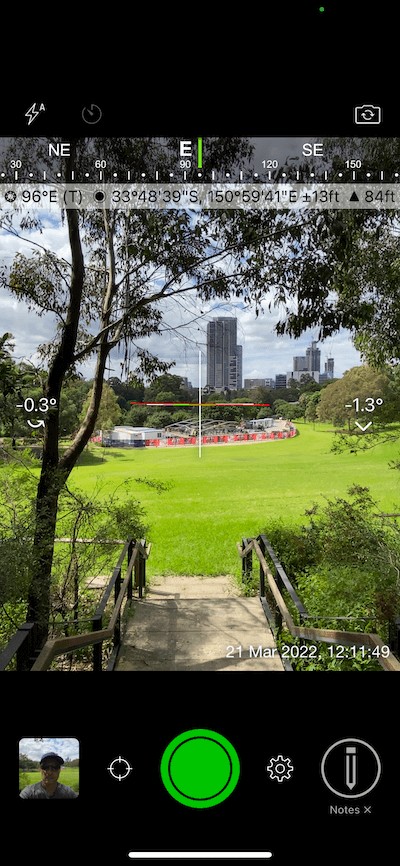
  • stairs heading to green grass park
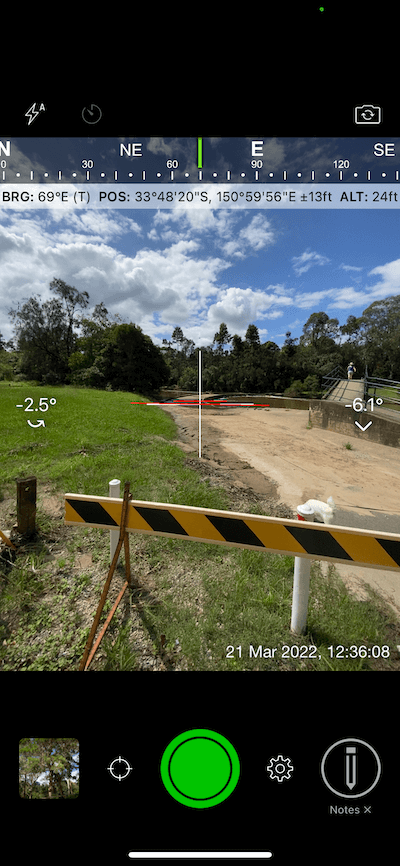
  • Road closed with barricade
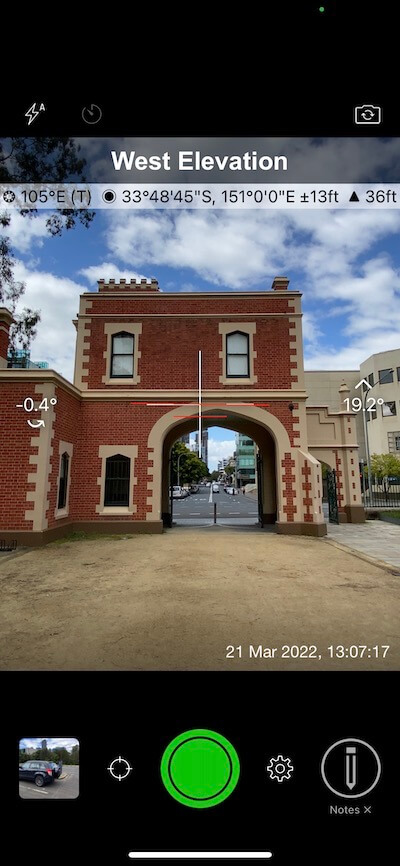
  • West elevation of Parramatta Park gate house.
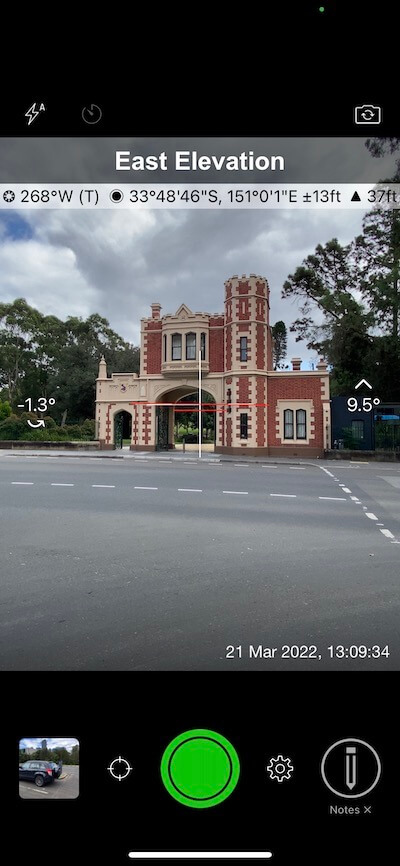
  • East elevation of Parramatta Park gate house.
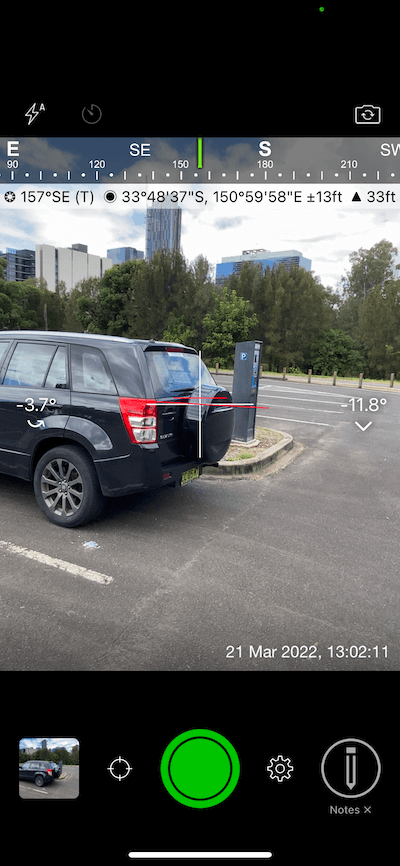
  • Parked car in carpark.
  • CAPTURE PHOTO EVIDENCE

    Select the information to overlay on your photos for proof of work:

    • GPS Location (Latitude & Longitude in various formats) ± Accuracy
    • Compass direction – bearing (True/Magnetic North)
    • Altitude – MLS/HAE (Metric & Imperial units)
    • Tilt & Roll Angles
    • Centre crosshair
    • Local date & time (based on your GPS location)
    • Local time zone
    • UTC time
    • Cardinal & Intercardinal directions
    • Building facade direction, e.g. “North elevation”
    • Option to use abbreviations or Unicode characters for direction, position and altitude
    INDUSTRY PACK
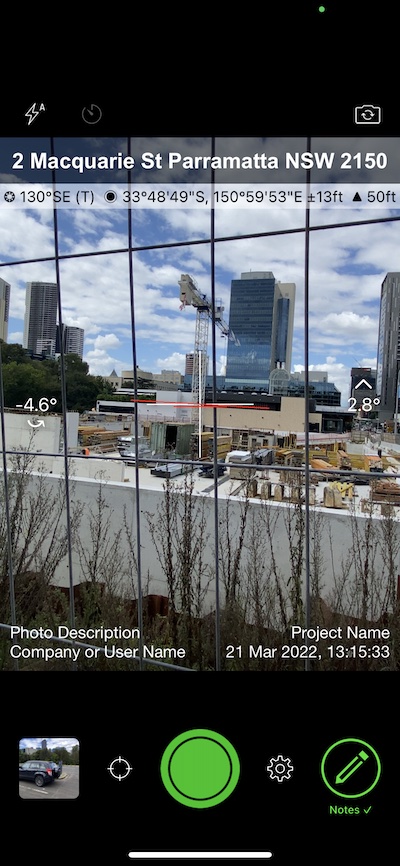
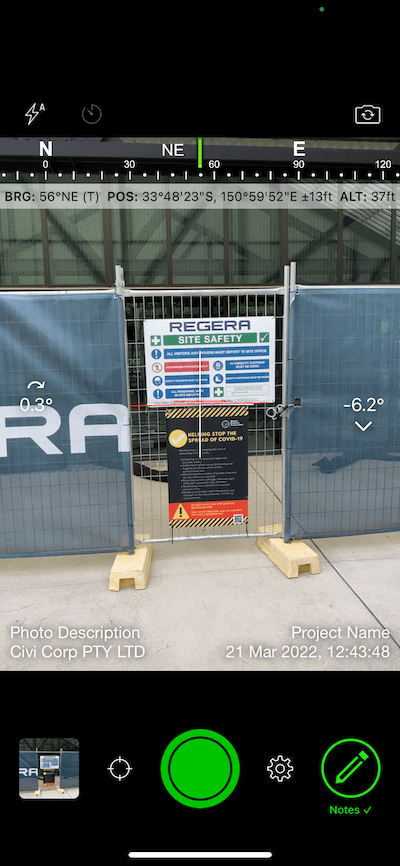
  • Safety fence around building site.
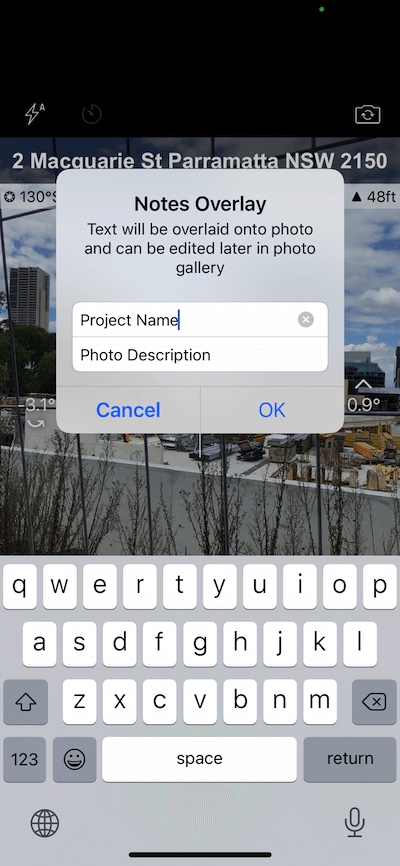
  • Field notes entered for photo overlay.
  • Construction site behind fence.
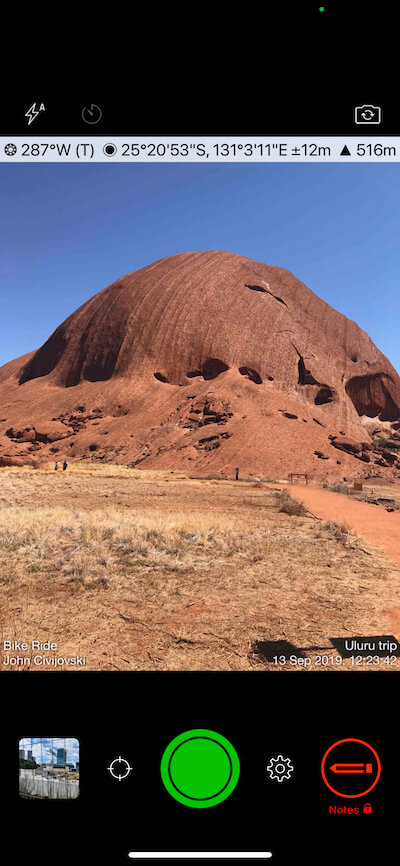
  • Rock formation in Uluru Central Australian.
  • EDITABLE NOTES OVERLAY
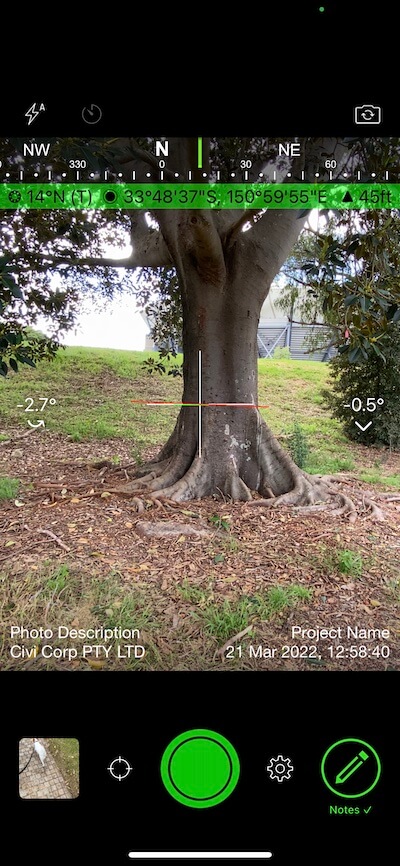
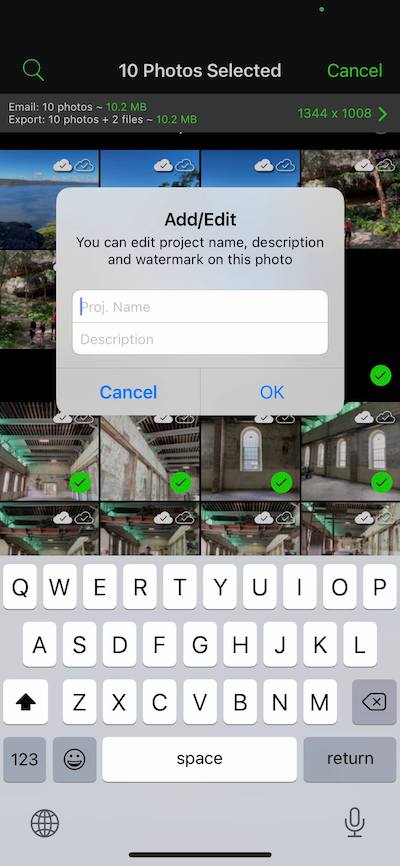
    Stamp your photos with a Project Name, Description, and Watermark. Use the Project Name for job or ticket numbers; this field also organises your cloud-saved photos into folders. The Description field allows for specific details, while the Watermark is ideal for company or user branding. All fields can be edited later if details change.

    WATERMARK LOGO
    Protect your work and reinforce your brand identity by adding your company logo to your photo overlays. Enjoy flexible placement options, either integrated with the notes or as a subtle background at the size you want. Tailor the logo position specifically for landscape and portrait views. 

    STREET ADDRESS
    Selecting street mode overlays photos with the street address. You can select the distance interval at which to check and update the street address while on the go.

    UTM & MGRS Coordinate Formats

    COMPACT VIEW
    Switch off Compass, Cardinal, Building and Street modes and only show the GPS info bar for a more compact view.

    CAMERA

    STANDARD
  • Road closed with barricade
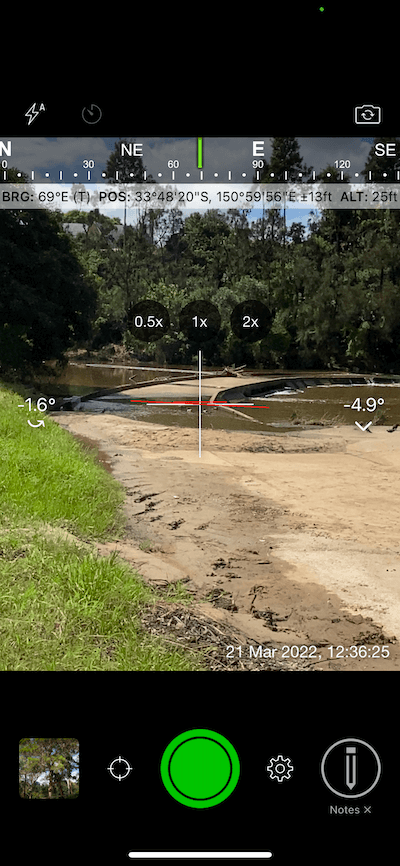
  • Camera zooming on river crossing.
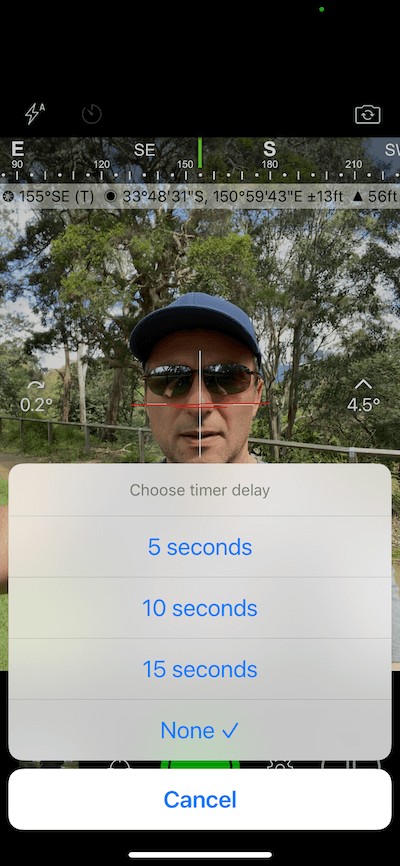
  • Camera self timer options.
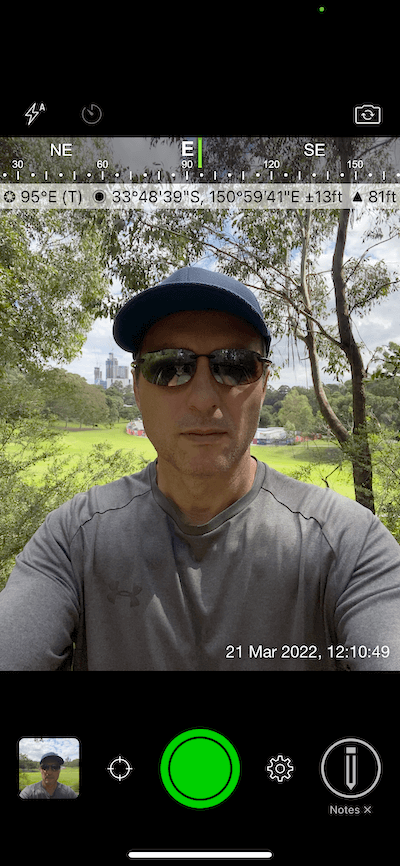
  • Selfie of man with cap and sunglasses.
  • DUAL PHOTO CAPTURE
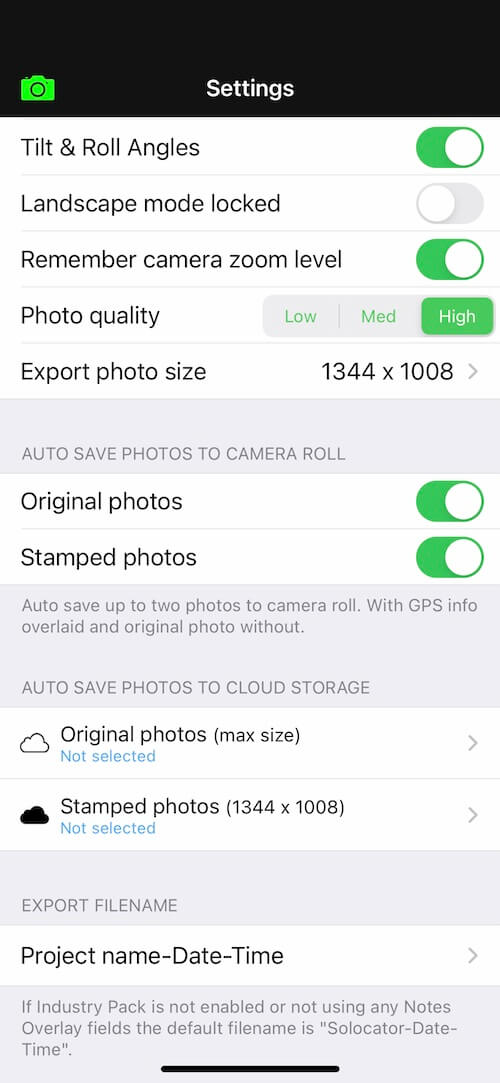
    Capture two photos simultaneously: one with a stamped GPS overlay and a second full-resolution original. By default, both are saved to your device’s camera roll, and the stamped version is also stored in the Solocator library for further editing or export. You can toggle autosave on or off for either version in your settings.

    SELFIE CAMERA
    Solocator allows the same overlays to be applied when taking selfies.

    CAMERA TIMER
    The timer offers 3 time options: 5, 10, or 15 seconds, so you can be in the photo as well.

    TILT, ROLL & CROSSHAIR
    These can be turned on as a camera overlay and also stamped onto photos.

    LANDSCAPE LOCK
    Ideal for taking many photos looking down at the ground.

    CAMERA ZOOM
    Pinch zoom to reveal three preset zoom buttons: 0.5x | 1.0x | 2.0x. Remembers your zoom level if switched on in settings.

    Other General Camera functions include auto, manual and lock Focus/Exposure plus Flash (auto | on | off) and Torch.

    INDUSTRY PACK
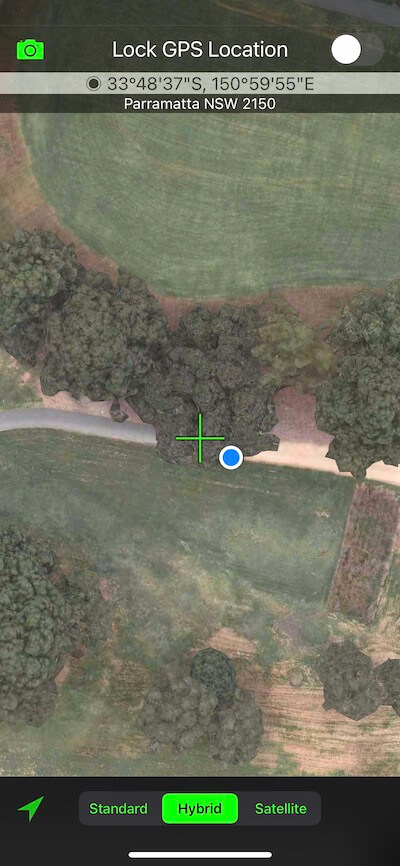
  • Solocator app map with current location.
  • Shady tree with notes and geospatial overlays.
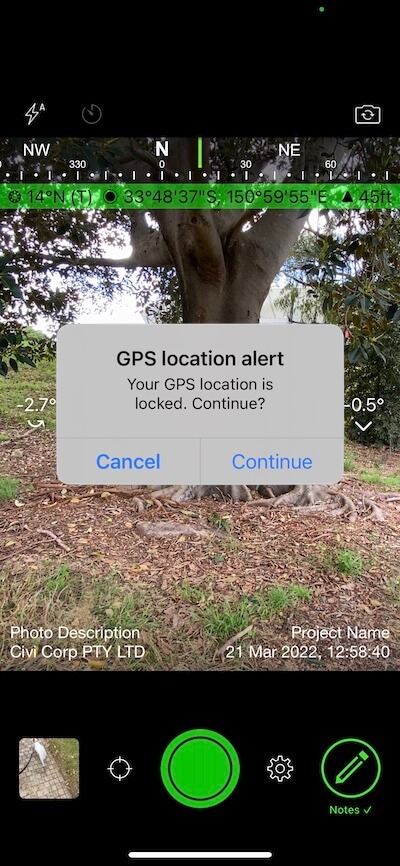
  • GPS location locked alert in Solocator camera.
  • LOCK GPS POSITION

    • When taking photos under cover or up against large buildings, you may wish to refine and lock your position to identify your current location better, especially if there are structures to relate to.
    • This feature may also be helpful for you if you want to nominate the position of the asset, building etc., you’re taking a photo or instead of where you’re standing.

    GPS info bar in the camera overlay turns green, indicating the change from live GPS roaming (white background), and an alert pops up after the shutter button is used to remind you that your position is fixed.

    AUTOSAVE PHOTOS

    STANDARD
  • Solocator settings screen.
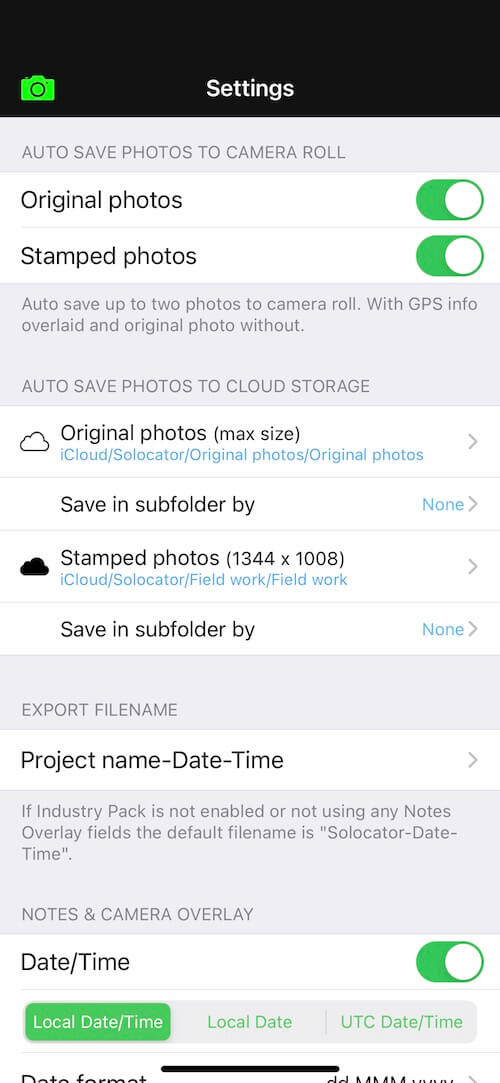
  • Selected iCloud Drive file path for autosaving photos.
  • AUTOSAVE PHOTOS TO iCLOUD
    Take and autosave two photos at once to iCloud Solocator folder. Options include:

    • Stamped photo with overlays and
    • Original high res photo with no stamped overlays
    • Date subfolder

    AUTOSAVE PHOTOS TO CAMERA ROLL
    Autosave two photos at once to the device camera roll.
    Options include:

    • Stamped photo with overlays.
    • Original high res photo with no stamped overlays.
    • Save photos to a Solocator album in your camera roll.
    • Add a suffix to the Solocator album: “Date” or “Project Name”.
    INDUSTRY PACK
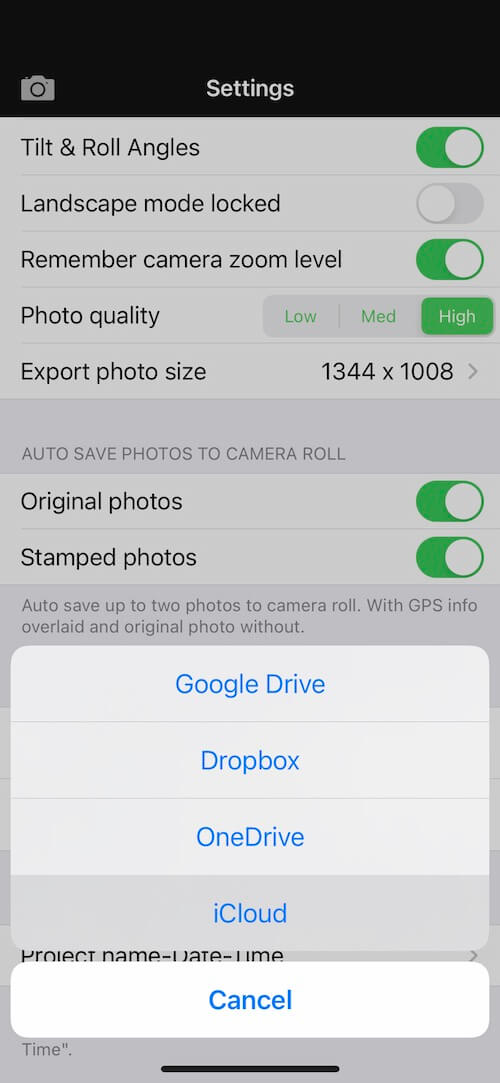
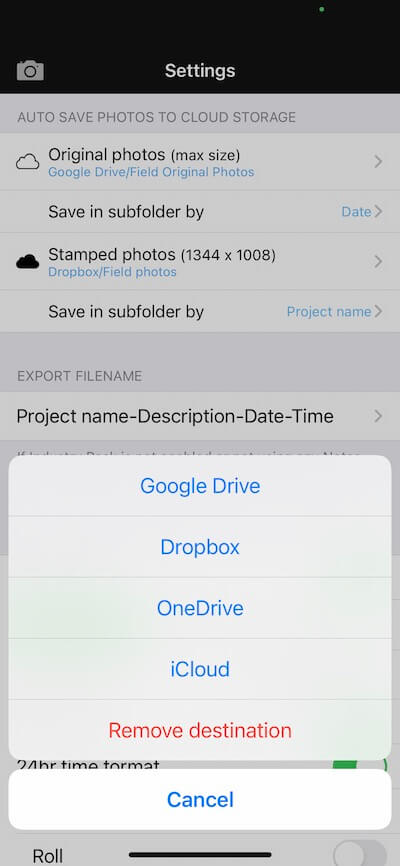
  • Cloud options in Solocator are Google Drive, Dropbox, OneDrive and iCloud.
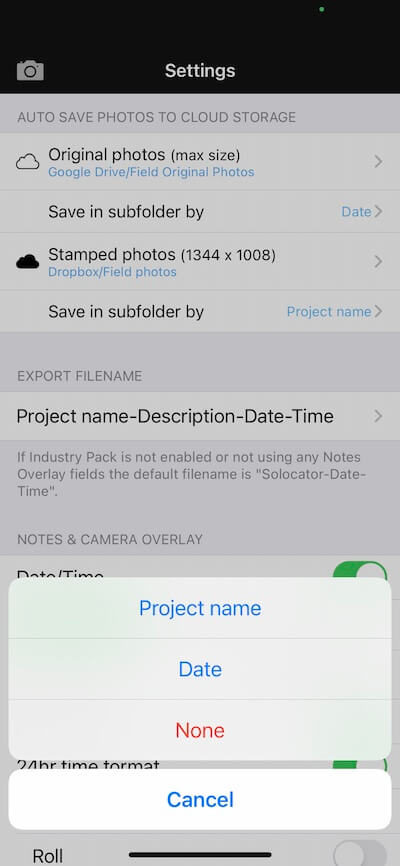
  • Project name or date subfolder selections.
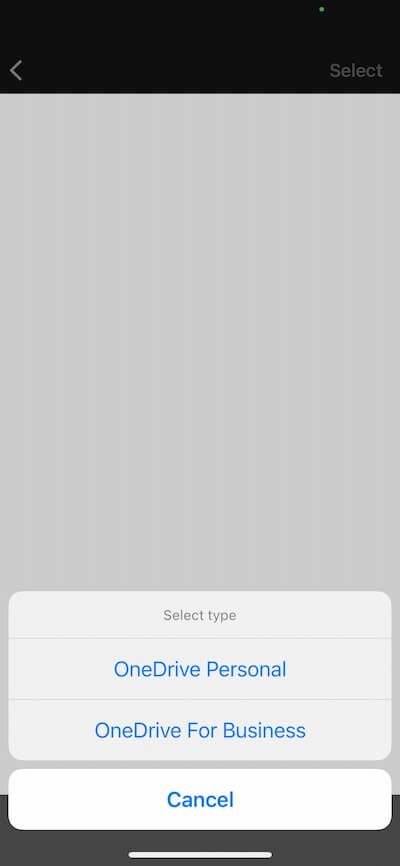
  • Autosave photos to either OneDrive personal or for business.
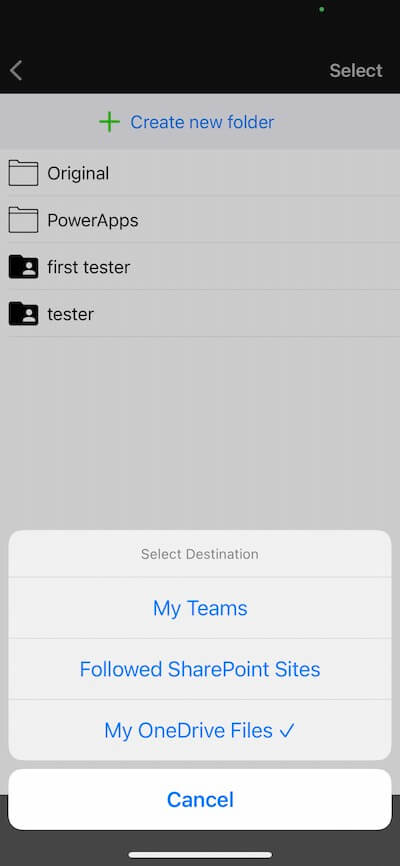
  • Autosave option to Microsoft My Teams, SharePoint sites and OneDrive.
  • AUTOSAVE PHOTOS TO CLOUD STORAGE
    Autosave original and stamped photos to:

    • iCloud
    • Google Drive
    • Dropbox
    • OneDrive – Personal
    • OneDrive – For Business. Includes followed SharePoint Sites and Microsoft Teams.

    Photos can also be saved automatically under “Date” or “Project Name” subfolders and autosaved to shared folders.


    MANAGE PHOTOS

    STANDARD
  • Photo library sorted by date and time.
  • Photo library sorted by location.
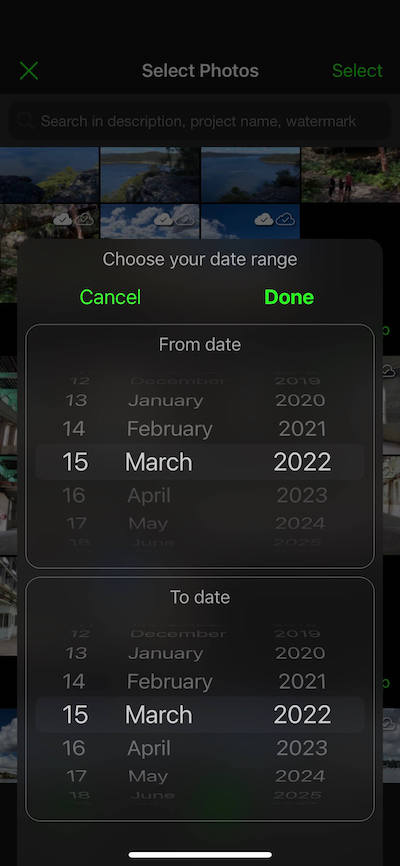
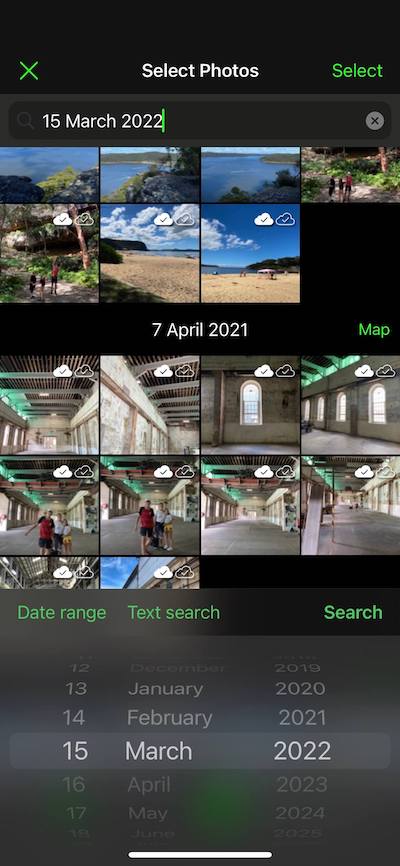
  • Search for photos by date range.
  • Date picker in photo library search.
  • Photo location and direction of photo on map.
  • Navigate to photo location via Apple Maps and Google Maps
  • Solocator overlay options.
  • WORKING WITH SOLOCATOR PHOTO LIBRARY

    • Photos are sorted by time, location, distance from current location and project name (if Industry Pack purchased)
    • View photo direction and location in map view and navigate back there via Apple or Google maps.
    • Search photos by specific or date range and time.
    • Batch Edit font colour/size, date/time format and gradient background for selected photos or individual photos.
    • Batch Edit coordinate formats that are part of the Standard app and change selection in the GPS info bar.
    INDUSTRY PACK
  • Photos grouped and sorted by Project name.
  • Notes overlay edit fields.
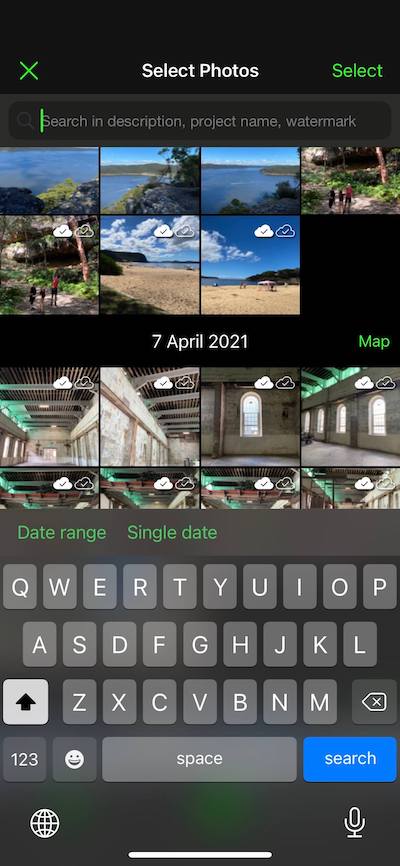
  • Search photo library by text.
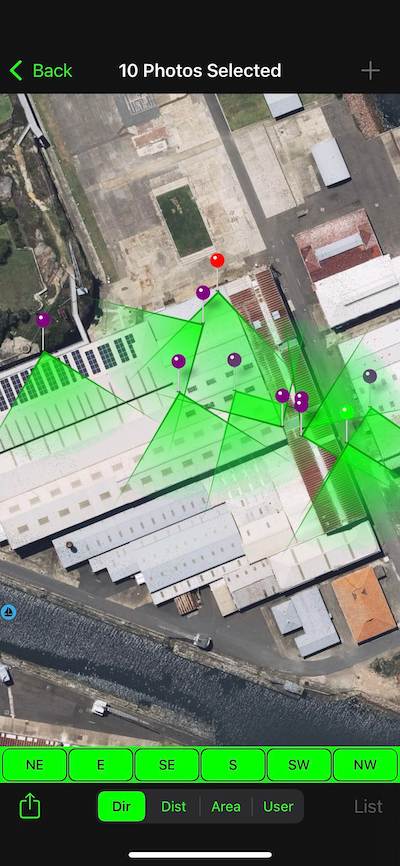
  • Photo location pins with direction fans on a map.
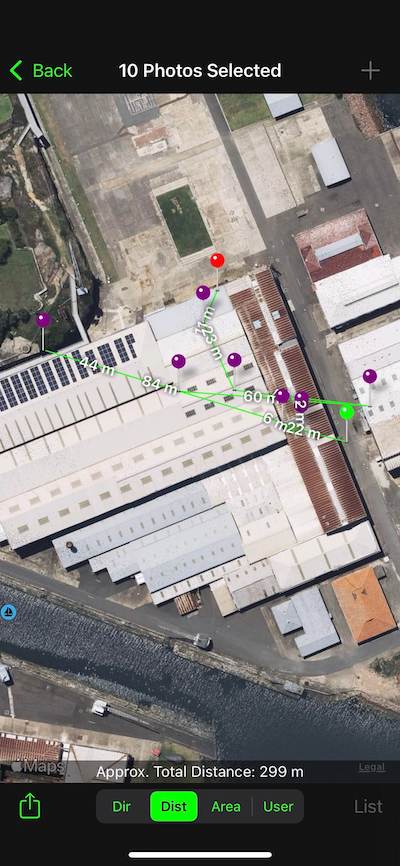
  • Distance between photo location pins on a map.
  • Area highlighted around photo pins on a map.
  • Distance of photo pins from selected marker.
  • Imported list of map markers.
  • BATCH EDIT NOTES, GEOSPATIAL SELECTIONS & OVERLAY FIELDS
    Select multiple photos from the library and edit Project Name, Description & Watermark fields in one go or switch between different geospatial selections, such as a different coordinate format.

    TRACK PHOTOS IN MAP VIEW
    View multiple photos by direction, distance between photos, area of photos and distance to your added markers via imported KML files or dropped pins. Import user markers.

    SEARCH FOR PHOTOS
    Search for photos by date, date range, project name, description, and watermark fields.

    SHARE PHOTOS

    STANDARD
  • Field photos and notes attached in an email.
  • Multiple field notes in email.
  • Sharing selected Solocator photos and files.
  • EMAILING PHOTOS & LOCATION DATA

    • Exif metadata saved to photos
    • Photos can be emailed individually or in a zip file
    • Formatted Email Body includes the following photo info:
      • Compass direction
      • GPS position ± accuracy
      • Altitude
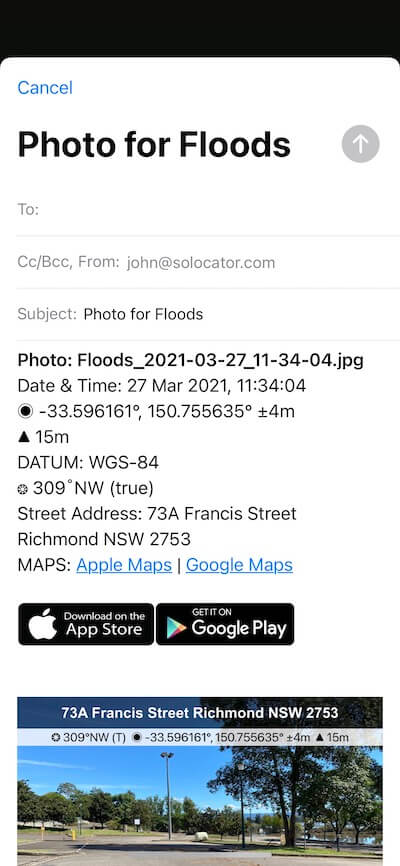
      • Tilt & Roll angles
      • Date & time taken
      • Street address (Industry Pack)
      • Elevation of building face viewed (if selected)
      • Links to Apple & Google maps so the receiver can navigate to the photo location
      • Share photos via the share sheet to other apps
      • Manually export photos to iCloud via the Files app
    INDUSTRY PACK
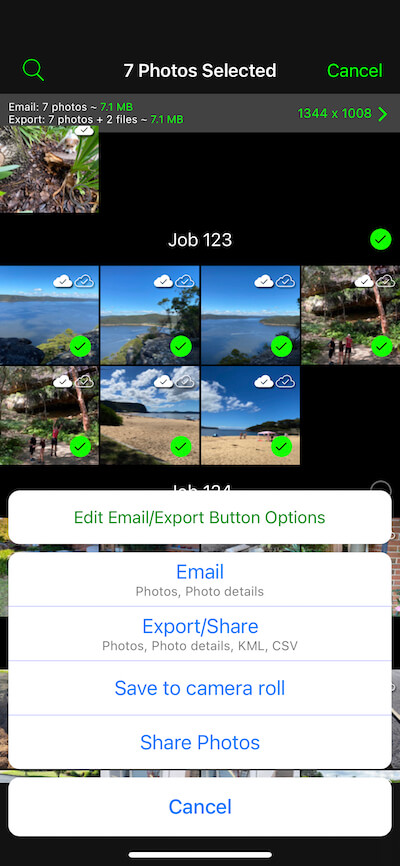
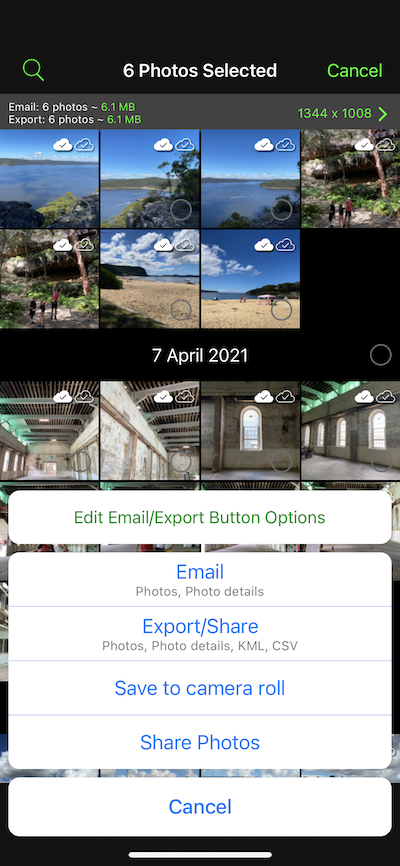
  • Photo export, email and share buttons.
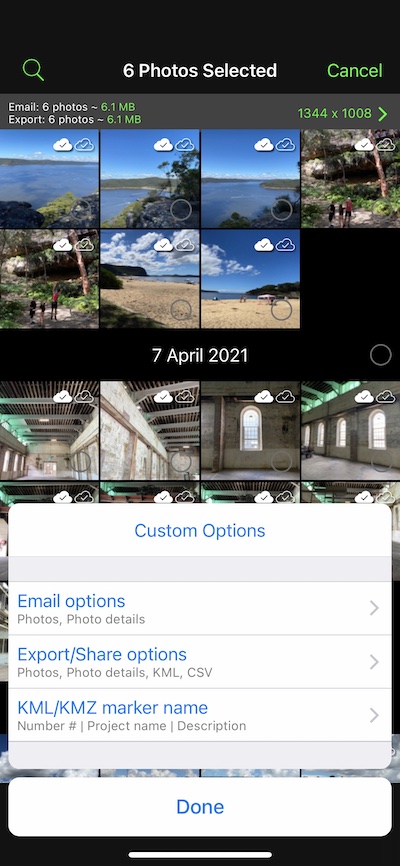
  • Solocator customised buttons.
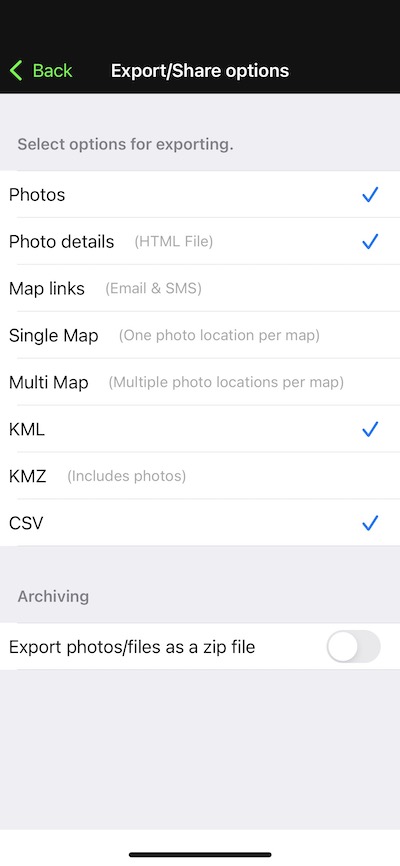
  • Email and export file type option list
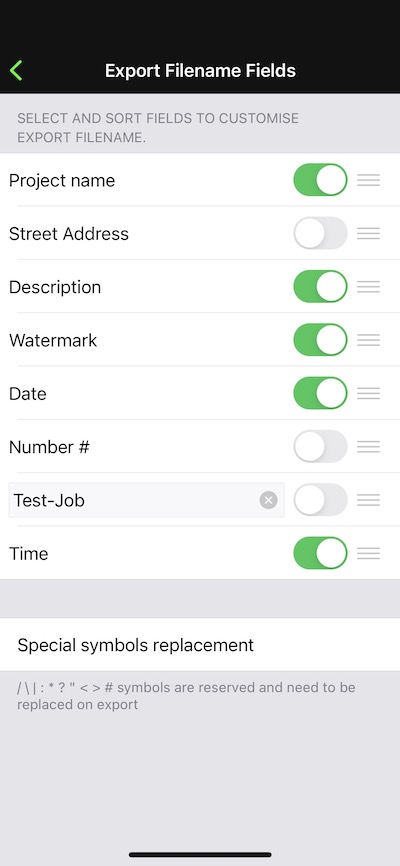
  • Customisable file name structure list
  • customise KMZ and KML file options.
  • CUSTOM EXPORT TO DROPBOX, GOOGLE DRIVE & ONEDRIVE
    Export multiple photos with captured project file names to cloud storage, including shared team folders.

    CUSTOM EXPORTING & EMAILING
    Export or email multiple photos and photo info in KML, KMZ or CSV formats. Attach maps of photo locations along with your photos when exporting or emailing.
    Select your combination of photos, maps and captured info in the file formats to suit your needs—export/email photos individually or as a zip file.

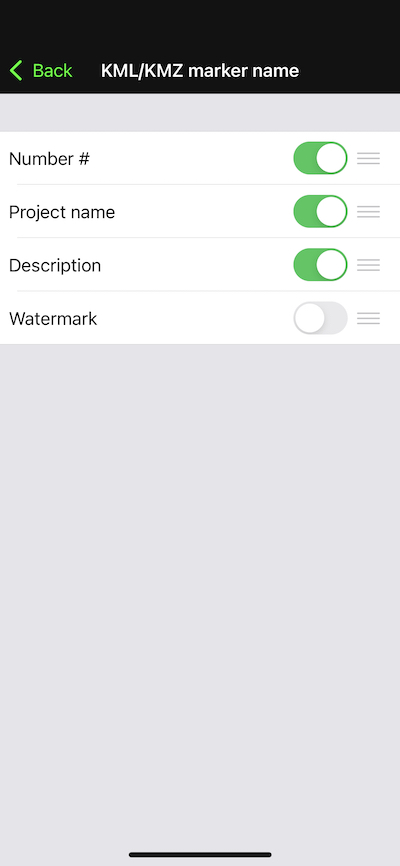
    Customise KML/KMZ marker name and photo size for KMZ files.

    CUSTOM EXPORT FILENAME
    Define your photo export filename by selecting the following fields and what order to be used; Project Name, Description, Watermark, Street Address, Date/Time and a Custom field.

    Export/share photos with map links via the share sheet.

    Request a feature

    Contact us and we’ll get back to you as soon as possible

    Contact Us